Showing posts with label HomeLab. Show all posts

2013/08/15

WS2012 Storage - Creating a Storage Pool and a Storage Space (aka Virtual Disk) using PowerShell

In my previous posts I talked about how to use NFS and iSCSI technologies hosted on Windows Server 2012 and how to deploy those to my Home Lab ESXi servers.

One point I did not covered was: How to do the Initial setup with the physical disk, Storage pooling and the creating the Virtual Disk(s) ?

The cost to acquire and manage highly available and reliable storage can represent a significant part of the IT budget. Windows Server 2012 addresses this issue by delivering a sophisticated virtualized storage feature called Storage Spaces as part of the WS2012 Storage platform. This provides an alternative option for companies that require advanced storage capabilities at lower price point.

2013/07/16

WS2012 Storage - iSCSI Target Server - Configuring an iSCSI Initiator on VMware vSphere 5.1


I recently switched the backend storage of my VMware vSphere 5.1 Home Lab from FreeNas (OS based on UNIX) to iSCSI (Windows Server 2012 Storage Feature). The reason is that I wanted to play with the PowerShell iSCSI modules and do some tests with SMB v3.0.

In a previous post I showed how to create an iSCSI target using PowerShell on Windows Server 2012. Today I will demonstrate how I set the VMware vSphere 5.1 Software iSCSI Adapter using PowerCli and create the datastore using the LUN created in my previous post. I won't cover how to assign the iSCSI traffic to a dedicated PortGroup and dedicated NICs.


2013/07/11

WS2012 Storage - iSCSI Target Server - Create an iSCSI target using PowerShell

For my Virtual Machines needs, some LUNS are presented to my VMware vSphere 5.1 Servers and until now, my lab storage was handle by FreeNas using iSCSI.
For tests purposes, I replaced this FreeNas by Windows Server 2012 to take care of that part.

Note: Before writing this post, I grouped my physical disks together into a container called storage pools to manage those disks as a single storage space. Afterwards, in these storage pools, I created virtual disks (aka LUN) on which I specify a layout, ... which is simply a raid level.


Overview

In the following post I will talk about the following points:
  • Quick iSCSI Terminology
  • Quick look at iSCSI Target Management (GUI and PowerShell iSCSI Modules)
  • Installing the Windows Feature iSCSI Server Target (PowerShell)
  • Creating a iSCSI Virtual Disk (aka LUN) (PowerShell)
  • Creating a iSCSI Target and assigning it to one or more initiator(s) (PowerShell)
    • Finding the iSCSI Qualified Name (IQN) (vSphere Client and PowerCLI)
  • Assigning a iSCSI Virtual Disk (LUN) to a iSCSI Target (PowerShell) 


Terminology


Note: The iSCSI protocol is fully documented by the RFC 3720 and RFC 3721

iSCSI: iSCSI stands for Internet Small Computer System Interface.
It's an Internet Protocol (IP)-based storage networking standard for linking data storage facilities.
iSCSI is used to facilitate data transfers over a network (LAN, WAN or Internet) and transferring data by carrying SCSI commands over IP networks. iSCSI leverages the Ethernet network and does not require any specialized hardware

source: http://blogs.technet.com/b/filecab/

iSCSI Target Server: is the server that shares the storage, it runs the iSCSI Target. The server (machine) consumes the storage is called iSCSI initiator.

iSCSI Initiator: Typically, it is an application server. For example, iSCSI Target provides storage to a SQL server, the SQL server will be the iSCSI initiator in this deployment.

Target: It is an object which allows the iSCSI initiator to make a connection. The Target keeps track of the initiators which are allowed to be connected to it. The Target also keeps track of the iSCSI virtual disks which are associated with it. Once the initiator establishes the connection to the Target, all the iSCSI virtual disks associated with the Target will be accessible by the initiator.

iSCSI Virtual Disk: It also referred to as iSCSI LUN. It is the object which can be mounted by the iSCSI initiator. On Windows Server 2012, the iSCSI virtual disk is backed by the VHD file.

iSCSI Connection: iSCSI initiator makes a connection to the iSCSI Target Server by logging on to a Target. There could be multiple Targets on the iSCSI Target Server, each Target can be accessed by a defined list of initiators. Multiple initiators can make connections to the same Target. However, this type of configuration is only supported with clustering. Because when multiple initiators connects to the same Target, all the initiators can read/write to the same set of iSCSI virtual disks, if there is no clustering (or equivalent process) to govern the disk access, corruption will occur. With Clustering, only one machine is allowed to access the iSCSI virtual disk at one time.

IQN: iSCSI Qualified Name. It is a unique identifier of the Target or Initiator. The Target IQN is shown when it is created on the Server. The initiator IQN can be found by typing a simple "iscsicli" cmd in the command window or using Get-InitiatorPort in PowerShell

Using iscsicli

Using PowerShell (module iSCSI) with the Cmdlet Get-InitiatorPort

2013/03/05

The Simplest Way to Create a Bootable Windows Server 2012 or Windows 8 USB Key

After I passed my VCP510-DV last week, I wanted to rebuild my Home Lab using Windows Server 2012 for the Storage part, instead of FreeNas.

Part of the rebuild, I needed to install Windows Server 2012 on top of the old FreeNas box. Hard task since I don't have a DVD player in the case... :-/

Hence, USB Boot it is...

I was surprise to see how easy it is to create a Bootable Windows Server 2012 (R1 or R2)/Windows 8/8.1 USB Key.

What do you need:


Once Installed, Launch Windows 7 USB/Download Tool
The first step is to select your ISO

2013/01/20

WS2012 Storage - NFS Server - Configure NFS for VMware vSphere 5.1 Home Lab


The following procedure show how to setup a NFS Server hosted on Windows Server 2012 for backend storage of my VMware vSphere Server 5.1 Home Lab.

You can also check my post on Creating an iSCSI Target Server on Windows Server 2012.


Overview

In the following post I will talk about the following points:
  • Terminology
  • Using PowerShell
    • Add the Role NFS Server Feature on Microsoft Windows Server 2012
    • Create the Share and Set the NFS permissions
    • Add the NFS datastore to VMware vSphere 5.1
  • Using the GUI (Graphical User Interface)
    • Add the Role NFS Server Feature on Microsoft Windows Server 2012
    • Create the Share and Set the NFS permissions
    • Add the NFS datastore to VMware vSphere 5.1


NFS Storage

Quick overview of my NFS Service architecture in my Home Lab


2013/01/17

DirectPath I/O supported with ASUS M5A97 R2.0/AMD FX-8350


My HomeLab configuration:
MotherBoard: ASUS M5A97 R2.0
CPU : AMD FX-8350 (8 Cores - 4.0Ghz)

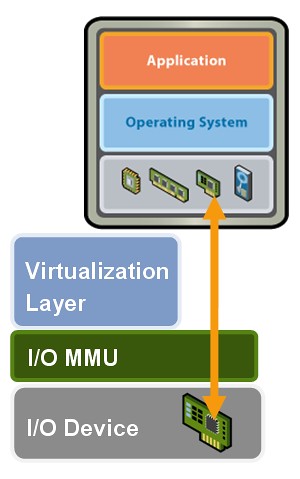
DirectPath IO


How to DirectPath I/O on the ASUS M5A97 R2.0
-Enter into the BIOS and navigate to the Advanced Settings (using F7)
-Under North Bridge Configuration
-IOMMU is DISABLED by default, set to ENABLED

2012/12/09

FreeNas 8.3 - Creating a RAID volume and Configure iSCSI

FreeNAS is a tiny Open Source FreeBSD-based operating system which provides free Network-Attached Storage (NAS) services (CIFS, FTP, NFS, ...). It supports sharing across Windows, Apple, and UNIX-like systems.

FreeNAS 8 includes ZFS, which supports high storage capacities and integrates file systems and volume management into a single piece of software.


Overview

In the following post I will cover the following points:
  • Introduction
  • Terminology
  • Raid Volume Configuration
    • Connecting to the FreeNas HTTP Interface
    • Creating the RAID Volume
  • iSCSI Configuration
    • Adding a Portal
    • Adding an Initiator
    • Adding a Target
    • Adding a File Extent
    • Adding a Target / Extent association
    • Enabling the iSCSI Service
  • Configuring the iSCSI Initiator on VMware vSphere 5.1


Introduction

Using FreeNAS 8.3, I need to create a RAID Volume, configure iSCSI and present it to my VMware VSphere 5.1 environment.

Note: If you are not familiar with some of the iSCSI terms used below (target, initiator, extent...) please check the following webpage: http://doc.freenas.org/index.php/ISCSI


Overview of my iSCSI Lab Architecture

2012/12/07

My Home Lab !

I finally ordered my home lab to work on my technical knowledge and to help me work on some certifications. 

My first goal will be to pass my VCP5-DV in February 2013 (It is already booked!) and probably work on some other certifications like Hyper-V, SCCM, W2012...

Here is the configuration I choose

My HomeLab will run on 3 Whiteboxes:
-2 HYPERVISOR  running VMware ESXi VSphere 5.1
-1 STORAGE SERVER running FreeNas 8.3


HYPERVISORS (2 New Whiteboxes)


STORAGE
For this box I took my old HTPC and replaced some components.


More detail on HomeLab page....