Showing posts with label Security. Show all posts

2016/03/19

Active Directory - How to grant an account to use Sync-ADObject ?

During an onboarding process, I had to create some accounts on a remote site where the Exchange Role is installed. There, the account can be mail-enabled. We do this because the information will get replicated to Office365 faster and we will be able to proceed with other automated tasks.

Once the account is created, mail-enabled, sync to Office365, added to a couple of DLs, I needed to sync back the account to my local Domain Controller.

This can be done using the Cmdlet Sync-ADobject from the Active Directory module.

Of course you will need to give explicit permission to an account to perform this action else you will get the following message:

"Sync-ADObject : Insufficient access rights to perform the operation"

To grant permission, you'll need to launch the ADSIEdit tool and grant permission at the root of the domain for "Replication Synchronisation"


Once the permission granted, you'll see the following


Thanks for reading! If you have any questions, leave a comment or send me an email at fxcat@lazywinadmin.com. I invite you to follow me on Twitter @lazywinadm / Google+ / LinkedIn. You can also follow the LazyWinAdmin Blog on Facebook Page and Google+ Page.

2012/12/29

Move Computers Object between two organizational units (OU) - What are the permissions required ?

Today I was playing a bit in my lab with PowerShell and AD Computer Objects.
I automate the daily cleanup of Inactive Computer Object and move them to a specific OU.
This script is running with his own service account, the privileges required are specified below.

Move Computer Object INSIDE an OU:
-Create Computer

Move Computer Object OUTSIDE an OU:
-Delete Computer
-Write All Properties

As an example, here I was using the "Delegation of Control Wizard" to allow the "Move out"


2011/04/26

What Anti-Virus scanning exclusions should be considered for system and servers ?

Source


Consider the following file scanning exceptions for your Anti-Virus software where applicable:

NOTE: The %systemroot% is normally the C:\WINDOWS or C:\WINNT directory depending on your OS.
NOTE: the %systemroot% variable will not work as an exclusion for some OSs.  So make sure to spell out full path in your exclusion files (GPO or via AntiVirus Server)

1.) %systemroot%\System32\Spool (and all the sub-folders and files)
2.) %systemroot%\SoftwareDistribution\Datastore
Refer to the following article for information:
KB822158 - Virus scanning recommendations for computers that are running Windows Server 2003, Windows 2000, or Windows XP http://support.microsoft.com/kb/822158
3.) Any Network Drives that are mapped.


2011/04/25

Use PowerShell to Identify Non-Standard Windows Service Accounts

Source:Expert Solution for the 2011 Scripting Games Beginner Event 4

<#

.SYNOPSIS
   Identifies services with nonstandard accounts
.DESCRIPTION
   Retrieves services that use accounts other than LocalSystem, LocalService or NetworkService
.PARAMETER computername
   one or more computernames or IP addresses
   you will need local administrator privileges, and the firewall needs to allow access
   to enable firewall access, run this command on target machines:
   netsh firewall set service type = remoteadmin mode = enable
.EXAMPLE
   Get-NonstandardService
   lists services with nonstandard accounts on local machine
.EXAMPLE
   Get-NonstandardService -computername 10.10.10.33
   lists services with nonstandard accounts on remote machine with IP 10.10.10.33
.EXAMPLE
   Get-NonstandardService -computername 10.10.10.33, 127.0.0.1, serv12-1, client3
   lists services with nonstandard accounts on four machines (including local system)
.LINK
   http://www.powershell.com
#>


function Get-NonstandardService {
  param(
  [String[]]
  $computername = '127.0.0.1'
  )
  # server-side WMI query to minimize network traffic and maximize performance
  $wql = 'Select Name, DisplayName, StartName, __Server From Win32_Service WHERE ((StartName != "LocalSystem") and (StartName != "NT Authority\\LocalService") and (StartName != "NT Authority\\NetworkService"))'

  # examine all computers submitted:
  $computername |
  ForEach-Object {
    Write-Progress 'examining computer:' $_

    # create new object to return information
    $rv = New-Object PSObject | Select-Object Computer, Result, Name, DisplayName
    $rv.computer = $_

    # search for nonstandard services
    try {
      # always return result as array
      $result = @(Get-WmiObject -Query $wql -ComputerName $rv.computer -ErrorAction Stop | Sort-Object DisplayName)

      # no results?
      if ($result.Count -eq 0) {
        # then all services use standard accounts, good:
        $rv.Result = 'OK'
        $rv
      } else {
        # return a result set for each nonstandard service
        $result | ForEach-Object {
          $rv.Computer = $_.__Server
          $rv.Name = $_.Name
          $rv.DisplayName = $_.DisplayName
          $rv.Result = $_.StartName
          $rv
        }
      }
    }
    catch {
      # WMI was unable to retrieve the information
      switch ($_) {
        # sort out most common errors and return qualified information
        {          $_.Exception.ErrorCode -eq 0x800706ba} { $rv.Result = 'WARN: Unavailable (offline, firewall)' }
        {          $_.CategoryInfo.Reason -eq 'UnauthorizedAccessException' } { $rv.Result = 'WARN: Access denied' }
        # return all other non-common errors
        default { $rv.Result = 'WARN: ' + $_.Exception.Message }
      }
      # return error information
      $rv
    }
  }
}

2011/02/16

Active Directory - List and Set/Fix AD users not inheriting permissions

updated: 2013/03/29

Inherited permissions are those that are propagated to an object from a parent object. Inherited permissions ease the task of managing permissions and ensure consistency of permissions among all objects within a given container.

If the Allow and Deny permission check boxes in the various parts of the access control user interface are shaded when you view the permissions of an object, the object has inherited permissions from a parent object. You can set these inherited permissions by using the Permissions tab of the Advanced Security Settings properties page.

Check Technet for more information

Here is the PowerShell way to check which users does not have Inheriting Permission and How to Enabling it for all your users. You will need to user Quest Active Directory Snapin

List Users without Inheriting Permission
# This Command will list the user not inheriting Permission
Get-QADUser -SizeLimit 0 | `
Where-Object {$_.DirectoryEntry.PSBase.ObjectSecurity.AreAccessRulesProtected}


Enabling Inheriting Permission for all Users
# This Command will enable inheriting Permission for all the accounts
Get-QADUser -SizeLimit 0 | `
Where-Object {$_.DirectoryEntry.PSBase.ObjectSecurity.AreAccessRulesProtected} | `
Set-QADObjectSecurity -UnLockInheritance

2011/02/02

Generating Passwords with Powershell

Source

#
#######################################################################
# FUNCTION NAME: New-Password
#   
# See USAGE() function for docs.
#
# WRITTEN BY: Derek Mangrum
#
# REVISION HISTORY:
#     2008-10-23 : Initial version
#######################################################################
function New-Password
{
    param 
    (
        [int]$length,
        [switch]$lowerCase,
        [switch]$upperCase,
        [switch]$numbers,
        [switch]$specialChars
    )

    BEGIN
    {
        # Usage Instructions
        function Usage() 
        {
            Write-Host ''
            Write-Host 'FUNCTION NAME: New-Password' -ForegroundColor White
            Write-Host ''
            Write-Host 'USAGE'
            Write-Host '    New-Password -length 10 -upperCase -lowerCase -numbers'
            Write-Host '    New-Password -length 10 -specialChars'
            Write-Host '    New-Password -le 10 -lo -u -n -s'
            Write-Host '    New-Password'
            Write-Host ''
            Write-Host 'DESCRIPTION:'
            Write-Host ' Generates a random password of a given length (-length parameter)'
            Write-Host ' comprised of at least one character from each subset provided'
            Write-Host ' as a switch parameter.'
            Write-Host ''
            Write-Host 'AVAILABLE SWITCHES:'
            Write-Host ' -lowerCase    : include all lower case letters'
            Write-Host ' -upperCase    : include all upper case letters'
            Write-Host ' -numbers      : include 0-9'
            Write-Host ' -specialChars : include the following- !@#$%^&*()_+-={}[]<>'
            Write-Host ''
            Write-Host 'REQUIREMENTS:'
            Write-Host ' You must provide the -length (four or greater) and at least one character switch'
            Write-Host ''
        }
        
        function generate_password
        {
            if ($lowerCase)    
            { 
                $charsToUse += $lCase
                $regexExp += "(?=.*[$lCase])"
            }
            if ($upperCase)        
            { 
                $charsToUse += $uCase 
                $regexExp += "(?=.*[$uCase])"
            }
            if ($numbers)
            { 
                $charsToUse += $nums 
                $regexExp += "(?=.*[$nums])"
            }
            if ($specialChars)    
            { 
                $charsToUse += $specChars
                $regexExp += "(?=.*[\W])"
            }
            
            $test = [regex]$regexExp
            $rnd = New-Object System.Random
            
            do 
            {
                $pw = $null
                for ($i = 0 ; $i -lt $length ; $i++)
                {
                    $pw += $charsToUse[($rnd.Next(0,$charsToUse.Length))]
                    Start-Sleep -milliseconds 20
                }
            }
            until ($pw -match $test)
            
            return $pw
        }

        # Displays help
        if (($Args[0] -eq "-?") -or ($Args[0] -eq "-help")) 
        {
            Usage
            break
        }
        else
        {
            $lCase = 'abcdefghijklmnopqrstuvwxyz'
            $uCase = $lCase.ToUpper()
            $nums = '1234567890'
            $specChars = '!@#$%^&*()_+-={}[]<>'
        }
    }
    
    PROCESS
    {
        if (($length -ge 4) -and ($lowerCase -or $upperCase -or $numbers -or $specialChars))
        {
            $newPassword = generate_password
        }
        else
        {
            Usage
            break
        }
        
        $newPassword
    }
    
    END
    {
    }
}


Use the script like this:

New-Password -length 7 -lowerCase -upperCase -numbers -specialChars

2011/01/06

Active Directory - Delegate Remote Access Permission

Here are the steps I completed to do this. And yes it works through
ADUC.

ManageDialin

 
Note: this model requires editing the C:\windows\system32\DSSEC.DAT
file on the DC that you are running ADUC on. See
http://support.microsoft.com/?id=296490 for more details. In short,
some of the rights that need to be delegated are filtered out from the
list by default. Edit the file so that these permissions are no longer
filtered (set them from 7 to a 0):
 

1. Set the following values to 0 under the [user] area in the file (not
under [computer]):
" msNPAllowDialin=0
msNPCallingStationID=0
msNPSavedCallingStationID=0
msRADIUSCallbackNumber=0
msRADIUSFramedIPAddress=0
msRADIUSFramedRoute=0
msRADIUSServiceType=0

msRASSavedCallbackNumber=0
msRASSavedFramedIPAddress=0
msRASSavedFramedRoute=0"


2. Save the file and then open ADUC / run delegation wizard etc as
outlined below.
3. Specify the group to delegate to (DELG Group)
4. Select Create a custom task to delegate and select Next
5. Select Only the following objects in the folder
a. User objects
6. Select Next
7. Select General and Property-specific under Show these permissions
8. Select "Read and Write Remote Access Information"
9. Select the Read and Write checkboxes for all of the following
attributes
" msNPAllowDialin
msNPCallingStationID
msNPSavedCallingStationID
msRADIUSCallbackNumber
msRADIUSFramedIPAddress
msRADIUSFramedRoute
msRADIUSServiceType
msRASSavedCallbackNumber
msRASSavedFramedIPAddress
msRASSavedFramedRoute
userParameters"


10. Select Next
11. Review Summary and Select Finish to complete

2010/11/23

Zenmap (Nmap Gui)–Network Scanner

http://nmap.org/zenmap/

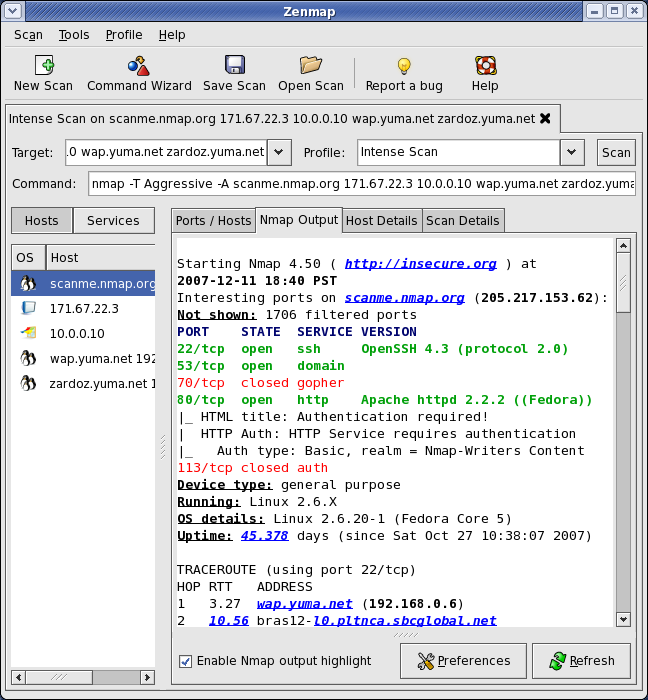
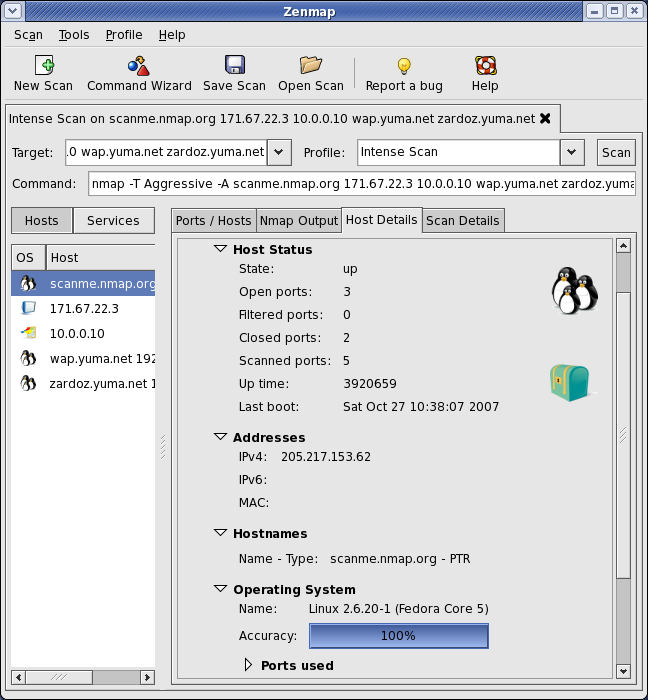
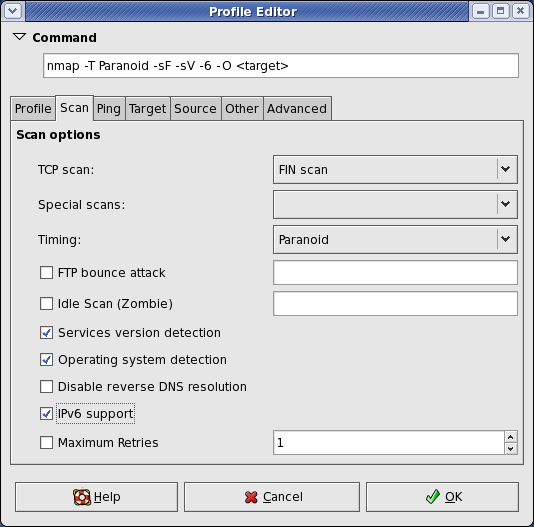
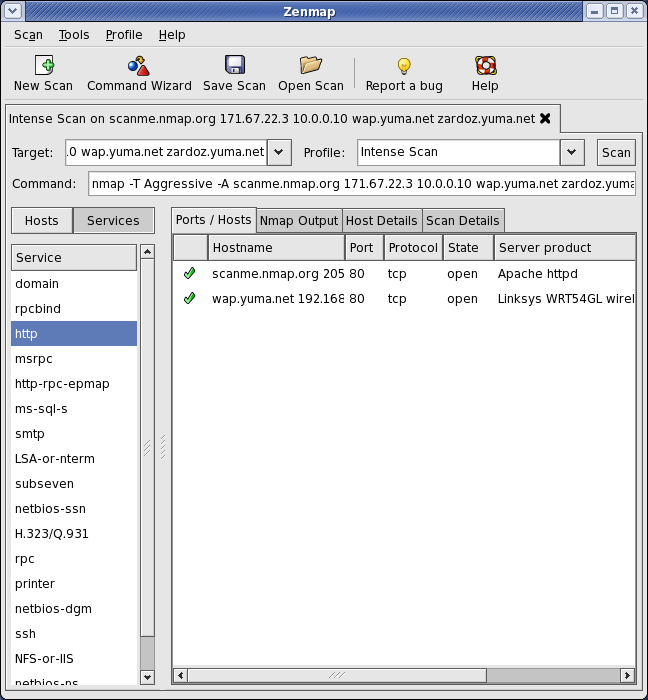
Zenmap is the official Nmap Security Scanner GUI. It is a multi-platform (Linux, Windows, Mac OS X, BSD, etc.) free and open source application which aims to make Nmap easy for beginners to use while providing advanced features for experienced Nmap users. Frequently used scans can be saved as profiles to make them easy to run repeatedly. A command creator allows interactive creation of Nmap command lines. Scan results can be saved and viewed later. Saved scan results can be compared with one another to see how they differ. The results of recent scans are stored in a searchable database.

You can download Zenmap (often packaged with Nmap itself) from the Nmap download page. Zenmap is quite intuitive, but you can learn more about using it from the Zenmap User's Guide or check out the Zenmap man page for some quick reference information.

Here are some Zenmap action shots (click for full res):