Showing posts with label Tool. Show all posts

2013/10/11

PowerShell Studio 2012 - WinForms - GUI ToolMaking

In my previous post I showed how to create a quick PowerShell GUI to append some colored text in a RichTextBox control using Sapien PowerShell Studio 2012.

Today I will go a bit further and show you how to create a tool to query some information from a remote computer. I will first send the Output to Out-GridView cmdlet and then show you how to send it to a DataGridView control inside the GUI.

The tool will query Services, Processes and Shares from a Remote Computer.
You will need to specify the ComputerName and the Credential required to perform those actions. The goal is to show how to create something very simple so I did not write any Error Handling or any conditional code in this version.

One cool thing to mention when using PowerShell Studio 2012 is, if you add some controls like a DataGridView, a Listview or a ListBox, PowerShell Studio 2012 will add some functions to help you Load/Add/Refresh those controls. I will show you below in the part "Replacing the Out-Gridview by a DataGridView Control"


2011/05/31

LazyWinAdmin 0.2

New version of LazyWinAdmin 0.2 (see the download section)

Download now

requires:
-PowerShell 2.0 on local machine
-Permissions on remote machines


Tool - mRemoteNG 1.67 RC3

New version of one of my favorite Admin tool: mRemoteNG


 Download it now!

Changes from 1.67 RC2 to 1.67 RC3
  • Added confirmation before closing connection tabs.
  • Fixed bug 42 - Maximized location not remembered with multiple monitors.
  • Improved loading and saving of window location.
  • Removed flickering on start up.
  • Fixed bug 43 - Creating a duplicate connection causes connection list to no longer be sorted ascending.
  • Improvements to German translation.
Changes from 1.67 RC1 to 1.67 RC2
  • Added partial French translation to the application.
  • Addded Thai translation to the installer.
  • Updated graphics in the installer to mRemoteNG logo.
  • Added buttons for Add Connection, Add Folder, and Sort Ascending (A-Z) to the Connections panel toolbar.
  • Fixed rename edit control staying open when collapsing all folders.
  • Changed sorting to sort all subfolders below the selected folder.
  • Allow sorting of connections if a connection entry is selected.
  • Fixed adding a connection entry if nothing is selected in the tree.
  • Added 15-bit Color RDP setting.
  • Fixed loading of RDP Colors setting from SQL.
  • Added Font Smoothing and Desktop Composition RDP settings.
  • Improved error handling when loading XML connection files.
  • Added the mRemoteNG icon to the list of selectable icons for connection entries.
Changes from 1.66 to 1.67 RC1
  • Fixed migration of external tools configuration and panel layout from Local to Roaming folder.
  • Disable ICA Hotkeys for Citrix connections. Fixes issue with international users.
  • Added a language selection option so users can override the language if they don't want it automatically detected.
  • Fixed RD Gateway default properties and RDP reconnection count setting not being saved.
  • Fixed bug 33 - IPv6 doesn't work in quick Connect box.
  • Moved the items under Tools in the Connections panel context menu up to the top level.

2011/05/05

Application command name for Windows System


Source (Technet Wiki)

If you encounter any problem launching some of the program, please try the following :
Press the Windows Key + R on your keyboard or click on Start > Start Search and type this command

Add/Remove Programs = appwiz.cpl
Administrative Tools = control admintools
Authorization Manager= azman.msc
Calculator = calc
Certificate Manager = certmgr.msc
Character Map = charmap
Check Disk Utility = chkdsk
Command Prompt = cmd.exe
Component Services = dcomcnfg
Computer Management = compmgmt.msc
Control Panel = control
Date and Time Properties = timedate.cpl
Defragment User Interface = dfrgui
Device Manager = devmgmt.msc
Direct X Troubleshooter = dxdiag
Disk Cleanup Utility = cleanmgr
Disk Management = diskmgmt.msc
Disk Parmelonion Manager = diskpart
Display Properties = control desktop or, alternatively desk.cpl
Ditilizer Calibration Tool = tabcal
Downloads = Downloads
DPI Scaling = dpiscaling
Driver Package Installer = dpinst
Driver Verifier Utility = verifier or, alternatively reset
DVD Player = dvdplay
Encryption File System = rekeywiz
Event Viewer = eventvwr.msc

2010/11/23

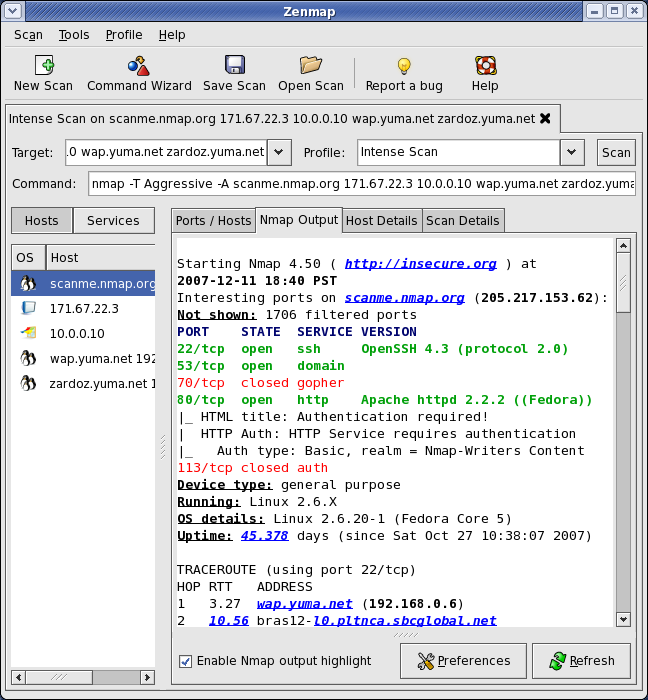
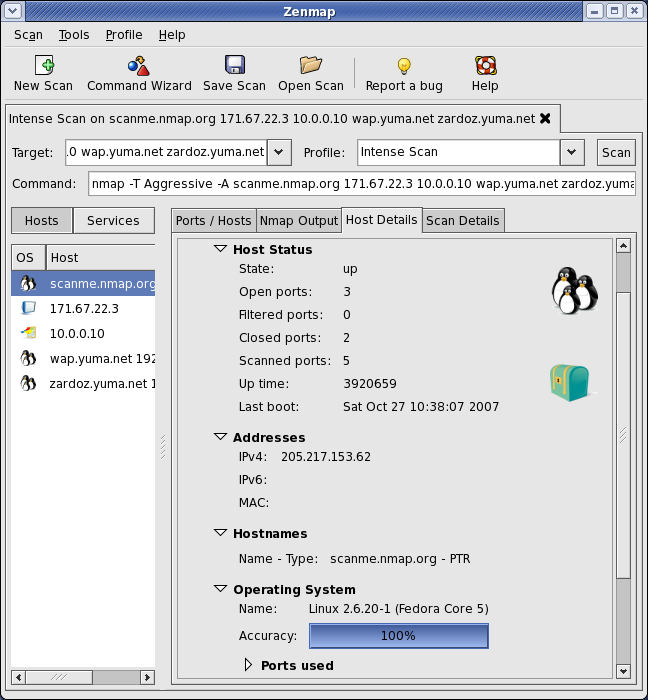
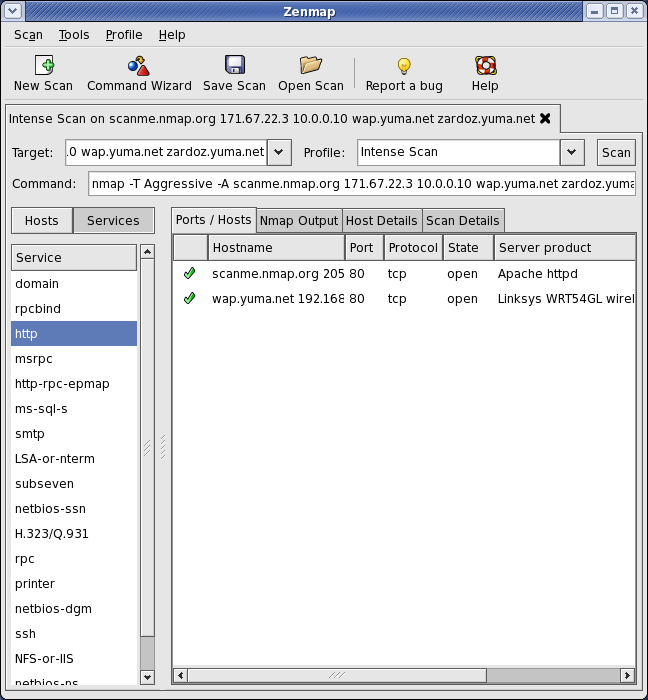
Zenmap (Nmap Gui)–Network Scanner

http://nmap.org/zenmap/

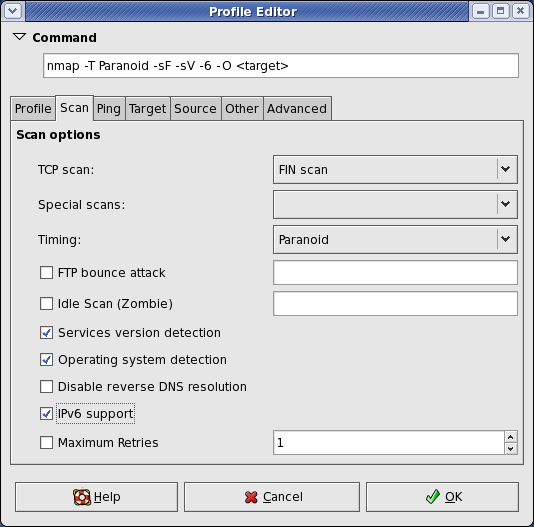
Zenmap is the official Nmap Security Scanner GUI. It is a multi-platform (Linux, Windows, Mac OS X, BSD, etc.) free and open source application which aims to make Nmap easy for beginners to use while providing advanced features for experienced Nmap users. Frequently used scans can be saved as profiles to make them easy to run repeatedly. A command creator allows interactive creation of Nmap command lines. Scan results can be saved and viewed later. Saved scan results can be compared with one another to see how they differ. The results of recent scans are stored in a searchable database.

You can download Zenmap (often packaged with Nmap itself) from the Nmap download page. Zenmap is quite intuitive, but you can learn more about using it from the Zenmap User's Guide or check out the Zenmap man page for some quick reference information.

Here are some Zenmap action shots (click for full res):

2010/07/21

Front-end PsTools - GUI for PSTools

Source: http://www.davitools.com/fepstools/fepstools.aspx
This is a GUI for the SYSINTERNALS PSTOOLS


Release Notes

Version 1.0
First version release in june 2004


Version 2.0 (06/2009)
Made up to date with the PsTools version 2.44
Quoted long names with space
Fixed several command line bugs
Password can be hidden in command line
Made Window resizable
Several GUI updates
Search network for computers and populate computer list
Added shortcuts for most common actions
Added option to show tool help output
Added option to show pstools help pages


2010/03/03

Easy Wiki Install

Bitnami

Free, easy to setup wikis, blogs, forums and many other web applications that you can runlocally or in the cloud. BitNami makes deploying server software a simple and enjoyable process.

Open Source simplified

I tried this tool with MediaWiki, great tool, very easy and fast to install.