2011/09/16

2011/02/15
How to find running processes and their port number
Source
The netstat command line utility displays protocol statistics and current TCP/IP network connections. If we want to display the associated process identifier (PID) of each process we add the -o parameter.

function Get-NetworkStatistics
{
    $properties = 'Protocol','LocalAddress','LocalPort'
    $properties += 'RemoteAddress','RemotePort','State','ProcessName','PID'

    netstat -ano | Select-String -Pattern '\s+(TCP|UDP)' | ForEach-Object {

        $item = $_.line.split(" ",[System.StringSplitOptions]::RemoveEmptyEntries)

        if($item[1] -notmatch '^\[::')
        {
            if (($la = $item[1] -as [ipaddress]).AddressFamily -eq 'InterNetworkV6')
            {
               $localAddress = $la.IPAddressToString
               $localPort = $item[1].split('\]:')[-1]
            }
            else
            {
                $localAddress = $item[1].split(':')[0]
                $localPort = $item[1].split(':')[-1]
            }

            if (($ra = $item[2] -as [ipaddress]).AddressFamily -eq 'InterNetworkV6')
            {
               $remoteAddress = $ra.IPAddressToString
               $remotePort = $item[2].split('\]:')[-1]
            }
            else
            {
               $remoteAddress = $item[2].split(':')[0]
               $remotePort = $item[2].split(':')[-1]
            }

            New-Object PSObject -Property @{
                PID = $item[-1]
                ProcessName = (Get-Process -Id $item[-1] -ErrorAction SilentlyContinue).Name
                Protocol = $item[0]
                LocalAddress = $localAddress
                LocalPort = $localPort
                RemoteAddress =$remoteAddress
                RemotePort = $remotePort
                State = if($item[0] -eq 'tcp') {$item[3]} else {$null}
            } | Select-Object -Property $properties
        }
    }
}


2010/11/23
Zenmap (Nmap Gui)–Network Scanner
Zenmap is the official Nmap Security Scanner GUI. It is a multi-platform (Linux, Windows, Mac OS X, BSD, etc.) free and open source application which aims to make Nmap easy for beginners to use while providing advanced features for experienced Nmap users. Frequently used scans can be saved as profiles to make them easy to run repeatedly. A command creator allows interactive creation of Nmap command lines. Scan results can be saved and viewed later. Saved scan results can be compared with one another to see how they differ. The results of recent scans are stored in a searchable database.
You can download Zenmap (often packaged with Nmap itself) from the Nmap download page. Zenmap is quite intuitive, but you can learn more about using it from the Zenmap User's Guide or check out the Zenmap man page for some quick reference information.
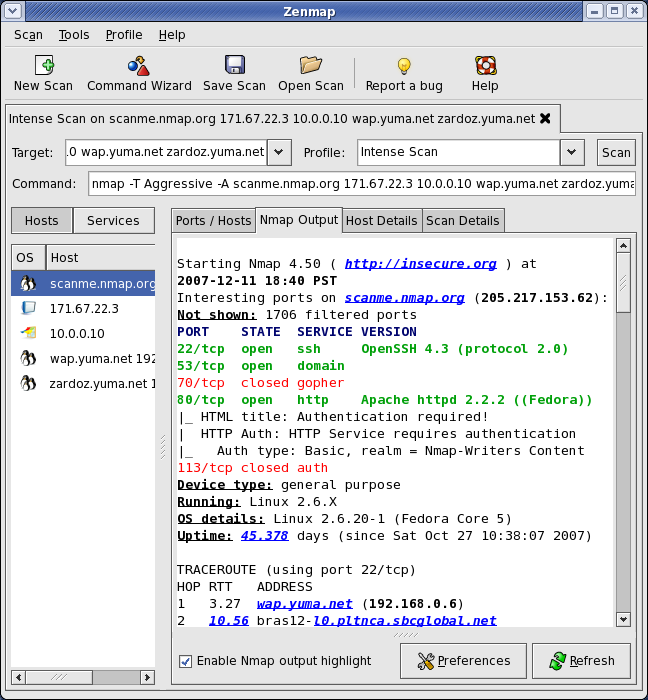
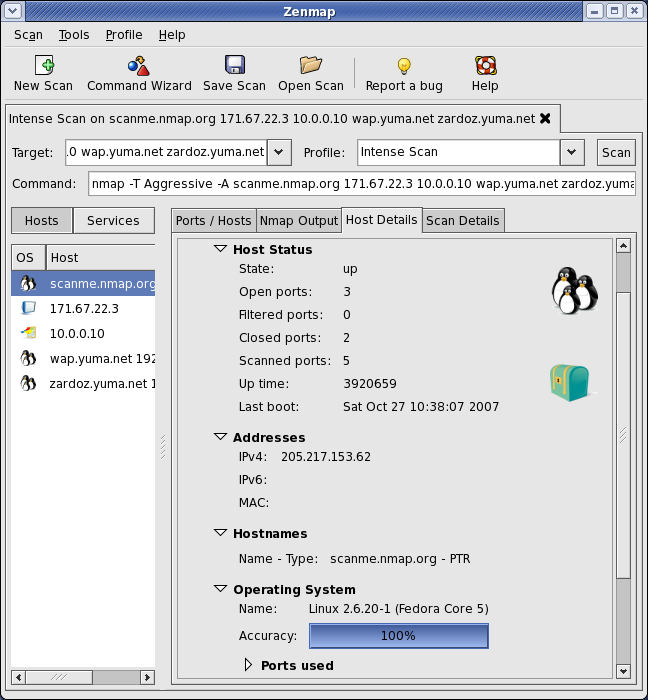
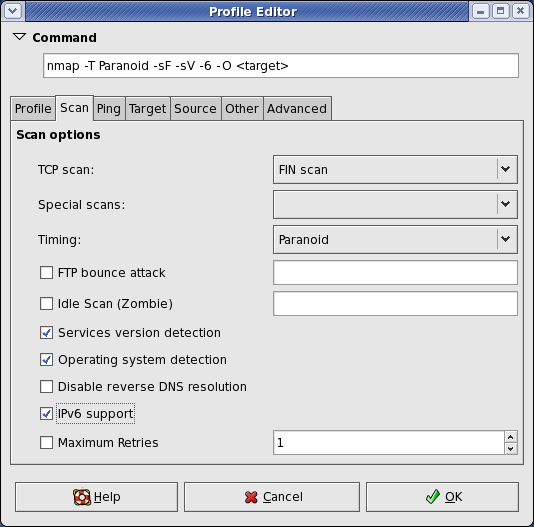
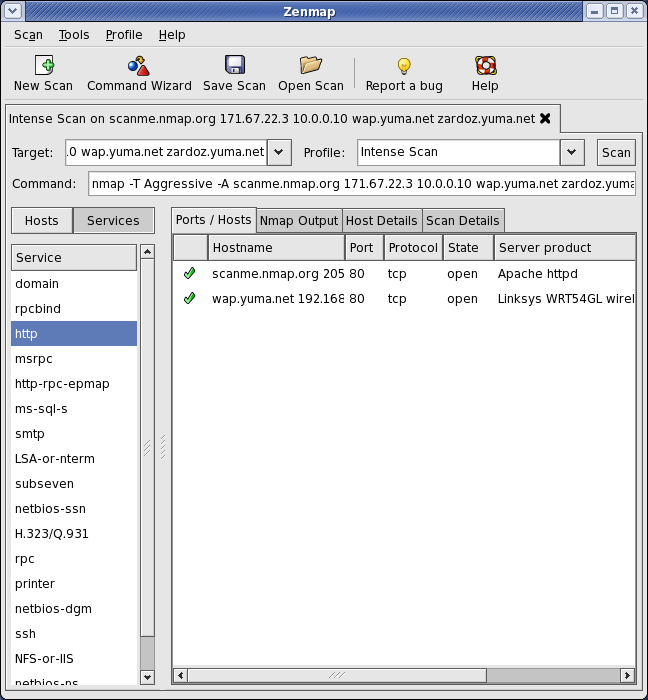
Here are some Zenmap action shots (click for full res):