Here are the steps I completed to do this. And yes it works through
ADUC.
ManageDialin
Note: this model requires editing the C:\windows\system32\DSSEC.DAT
file on the DC that you are running ADUC on. See
http://support.microsoft.com/?id=296490 for more details. In short,
some of the rights that need to be delegated are filtered out from the
list by default. Edit the file so that these permissions are no longer
filtered (set them from 7 to a 0):
1. Set the following values to 0 under the [user] area in the file (not
under [computer]):
" msNPAllowDialin=0
msNPCallingStationID=0
msNPSavedCallingStationID=0
msRADIUSCallbackNumber=0
msRADIUSFramedIPAddress=0
msRADIUSFramedRoute=0
msRADIUSServiceType=0
msRASSavedCallbackNumber=0
msRASSavedFramedIPAddress=0
msRASSavedFramedRoute=0"
2. Save the file and then open ADUC / run delegation wizard etc as
outlined below.
3. Specify the group to delegate to (DELG Group)
4. Select Create a custom task to delegate and select Next
5. Select Only the following objects in the folder
a. User objects
6. Select Next
7. Select General and Property-specific under Show these permissions
8. Select "Read and Write Remote Access Information"
9. Select the Read and Write checkboxes for all of the following
attributes
" msNPAllowDialin
msNPCallingStationID
msNPSavedCallingStationID
msRADIUSCallbackNumber
msRADIUSFramedIPAddress
msRADIUSFramedRoute
msRADIUSServiceType
msRASSavedCallbackNumber
msRASSavedFramedIPAddress
msRASSavedFramedRoute
userParameters"
10. Select Next
11. Review Summary and Select Finish to complete
2011/01/06

2010/12/23
Powershell - Using String Functions
Source: http://powershell.com/cs/blogs/tips/archive/2009/06/08/using-string-functions.aspx
PowerShell uses .NET objects everywhere. Anything is represented as .NET object, and .NET objects come with useful built-in methods. However, for string manipulation you do not need to look for sophisticated external commands as they are built right into strings.
Here are a couple of useful examples:
"Hello".ToLower()
"Hello".ToUpper()
"Hello".EndsWith('lo')
"Hello".StartsWith('he')
"Hello".toLower().StartsWith('he')
"Hello".Contains('l')
"Hello".LastIndexOf('l')
"Hello".IndexOf('l')
"Hello".Substring(3)
"Hello".Substring(3,1)
"Hello".Insert(3, "INSERTED")
"Hello".Length
"Hello".Replace('l', 'x')
"Server1,Server2,Server3".Split(',')
" remove space at ends ".Trim()
" remove space at ends ".Trim(' rem')
"Hello".ToUpper()
"Hello".EndsWith('lo')
"Hello".StartsWith('he')
"Hello".toLower().StartsWith('he')
"Hello".Contains('l')
"Hello".LastIndexOf('l')
"Hello".IndexOf('l')
"Hello".Substring(3)
"Hello".Substring(3,1)
"Hello".Insert(3, "INSERTED")
"Hello".Length
"Hello".Replace('l', 'x')
"Server1,Server2,Server3".Split(',')
" remove space at ends ".Trim()
" remove space at ends ".Trim(' rem')
Rename a network card in Command Line
Last week i was working on HP RDP (Rapid Deployment Pack), we want to automate the deployment of new server (Mainly Physical, and some Virtual)
I was looking for a way to rename an network Interface, by default: "Local Area Connection" or "Local Area Connection 2". Here is the useful command:
netsh interface set interface name="Local Area Connection" newname="ExampleLan"
2010/12/21
MS Windows Server 2008 R2 - Desktop Icons
Have you noticed that you cannot add the desktop icons (Computer, Network, etc.) to your Windows Server 2008 R2 desktop? Am I the only one who is annoyed by this? If not, here's how to get them back.
First, you'll have to go into Server Manager and access the Features section. In Features, you will select to add a feature and then select the Desktop Experience feature. Once added, you will have to reboot the server. That's right! A reboot is required to add icons to your desktop.
Now this is really insane. Think about it. You can add your own icons for shortcuts on the desktop, but to get Computer and Network, you have to add the entire Desktop Experience feature. What a ridiculous decision Microsoft made here.
Now that I've expressed my suffering, we shall move on.
Once you've rebooted the server, simply right-click on the Desktop and select Personalize. From here, you can add the desktop icons you desire as usual.
OK. I'm over it now, but it's still ridiculous.
First, you'll have to go into Server Manager and access the Features section. In Features, you will select to add a feature and then select the Desktop Experience feature. Once added, you will have to reboot the server. That's right! A reboot is required to add icons to your desktop.
Now this is really insane. Think about it. You can add your own icons for shortcuts on the desktop, but to get Computer and Network, you have to add the entire Desktop Experience feature. What a ridiculous decision Microsoft made here.
Now that I've expressed my suffering, we shall move on.
Once you've rebooted the server, simply right-click on the Desktop and select Personalize. From here, you can add the desktop icons you desire as usual.
OK. I'm over it now, but it's still ridiculous.
2010/11/24
BlackBerry and Powershell
Something that might be useful to anyone that uses poweshell alot. I wrote this so I could quickly look up a users information instead of having to go the BES Admin console. I put this in my profile.ps1 along with my other custom functions so it loads when i open powershell.
Requirements:
1. Install Quest Powershell Cmdlets "http://www.quest.com/powershell/activeroles-server.aspx" and make sure the snapin is loaded in powershell. I usually load it in my profile.ps1 file.
2. To use the new functions you need to follow the following install instructions. Install these components in the following order from this web site "http://www.microsoft.com/downloads/details.aspx?FamilyId=228DE03F-3B5A-428A-923F-58A033D316E1&displaylang=en" <This allows you to take advantage of the SQL 2008 cmdlets from Microsoft>
• Microsoft SQL Server System CLR Types
• Microsoft Core XML Services (MSXML) 6.0 (Note: This component is already part of SQL Server 2005, it will likely not need to be installed. I provide it here for completeness of prerequisites).
• Microsoft SQL Server 2008 Native Client (Note: I only installed the client. I did not install the SDK as well.)
Microsoft SQL Server 2008 Management Objects
• Microsoft Windows PowerShell Extensions for SQL Server
Run this from powershell.
set-alias installutil $env:windir\microsoft.net\framework\v2.0.50727\ins tallutil
installutil -i "C:\Program Files\Microsoft SQL Server\100\Tools\Binn\Redist\Microsoft.SqlServer.M anagement.PSProvider.dll"
installutil -i "C:\Program Files\Microsoft SQL Server\100\Tools\Binn\Redist\Microsoft.SqlServer.M anagement.PSSnapins.dll"
Usuage : gbesuser "samaccountname"
Expected Output: (I replaced company internal information with astericks)
Requirements:
1. Install Quest Powershell Cmdlets "http://www.quest.com/powershell/activeroles-server.aspx" and make sure the snapin is loaded in powershell. I usually load it in my profile.ps1 file.
2. To use the new functions you need to follow the following install instructions. Install these components in the following order from this web site "http://www.microsoft.com/downloads/details.aspx?FamilyId=228DE03F-3B5A-428A-923F-58A033D316E1&displaylang=en" <This allows you to take advantage of the SQL 2008 cmdlets from Microsoft>
• Microsoft SQL Server System CLR Types
• Microsoft Core XML Services (MSXML) 6.0 (Note: This component is already part of SQL Server 2005, it will likely not need to be installed. I provide it here for completeness of prerequisites).
• Microsoft SQL Server 2008 Native Client (Note: I only installed the client. I did not install the SDK as well.)
Microsoft SQL Server 2008 Management Objects
• Microsoft Windows PowerShell Extensions for SQL Server
Run this from powershell.
set-alias installutil $env:windir\microsoft.net\framework\v2.0.50727\ins tallutil
installutil -i "C:\Program Files\Microsoft SQL Server\100\Tools\Binn\Redist\Microsoft.SqlServer.M anagement.PSProvider.dll"
installutil -i "C:\Program Files\Microsoft SQL Server\100\Tools\Binn\Redist\Microsoft.SqlServer.M anagement.PSSnapins.dll"
Usuage : gbesuser "samaccountname"
function gbesuser ($user){

function devicetype ($type){
 switch ($type){
  "3"{"GSM"}
  "4"{"CDMA"}
  default{"Unknown"}
 }
}
function vendor($vendorID){
 switch ($buser.VendorID){
  "102"{"Cingular"}
  "103"{"NEXTEL"}
  "104"{"SprintPCS"}
  "105"{"Verizon"}
  "107"{"Rogers"}
  "109"{"Bell Mobility"}
  "120"{"Vodafone-UK"}
  "126"{"TELUS"}
  "138"{"Vodafone-AU"}
  "220"{"NNT DoCoMo"}
  default{"Unknown"}
 }
}
 $server=""
 $database = ""
 $mdn = get-Qaduser $user -includeallproperties | select legacyExchangeDN,AccountIsDisabled
 $bsql1 = "Select UserConfig.DisplayName,MachineName,PIN,DeviceType,ModelName,PhoneNumber,AppsVer`
 ,VendorID,IMEI,ICCID,MsgsForwarded,MsgsSent,MsgsPending,MsgsExpired,MsgsFiltered,MsgsFailed`
 ,Status,LastFwdTime,LastSentTime from UserConfig,SyncDeviceMgmtSummary`
 ,UserStats,ServerConfig where UserConfig.ID=SyncDeviceMgmtSummary.UserConfigID `
 and UserConfig.ID=UserStats.UserConfigID and UserConfig.MailboxDN = '"+$mdn.legacyexchangedn+"' `
 and Serverconfig.ID=UserConfig.ServerConfigID"
 $buser = Invoke-Sqlcmd -query $bsql1 -serverinstance $server -database $database
 $buser | select displayname,machinename,pin,@{Name="DeviceType";expression={devicetype $buser.devicetype}}`
 ,modelname,phonenumber,appsver,@{name="VendorID";expression={vendor $buser.vendorID}}`
 ,imei,iccid,MsgsForwarded,msgssent,msgspending,msgsexpired,msgsfiltered,msgsfailed,status,lastfwdtime,`
 lastsenttime,@{name="AccountStatus";expression={if($mdn.accountisdisabled -eq $true){"Disabled Account"}else{"Normal Account"}}}
}
Expected Output: (I replaced company internal information with astericks)
DisplayName : ***********
MachineName : **********
PIN : ***********
DeviceType : GSM
ModelName : 8310
PhoneNumber : ***********
AppsVer : 4.5.0.110
VendorID : Cingular
IMEI : **********
ICCID : **********
MsgsForwarded : 14268
MsgsSent : 452
MsgsPending : 0
MsgsExpired : 0
MsgsFiltered : 0
MsgsFailed : 1
Status : 12
LastFwdTime : 3/1/2009 4:49:27 PM
LastSentTime : 3/1/2009 1:45:04 PM
AccountStatus : Normal Account
2010/11/23
Zenmap (Nmap Gui)–Network Scanner
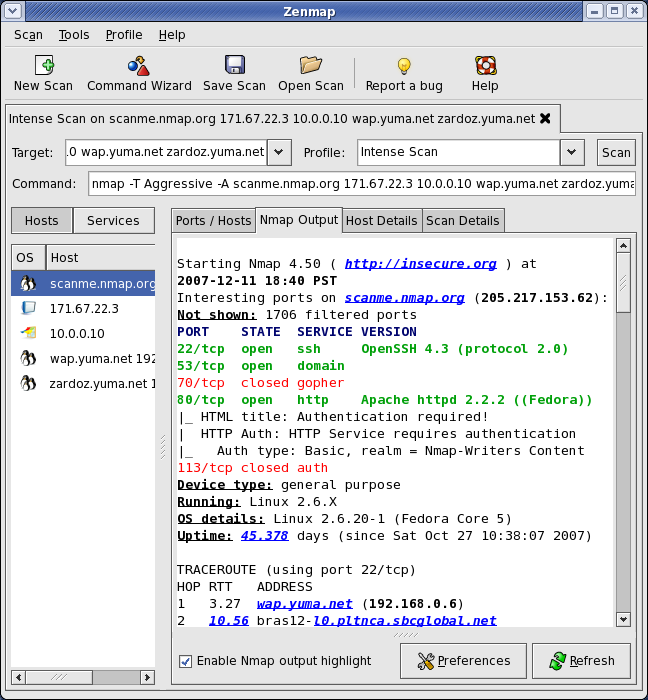
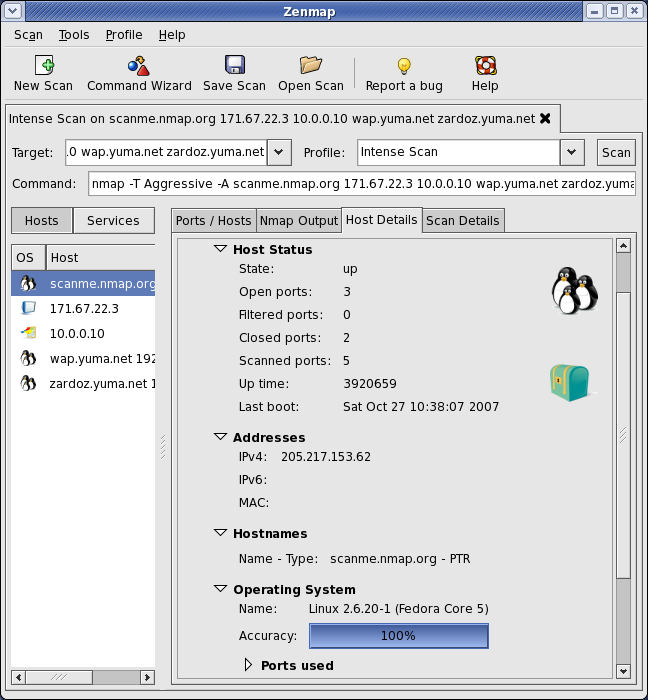
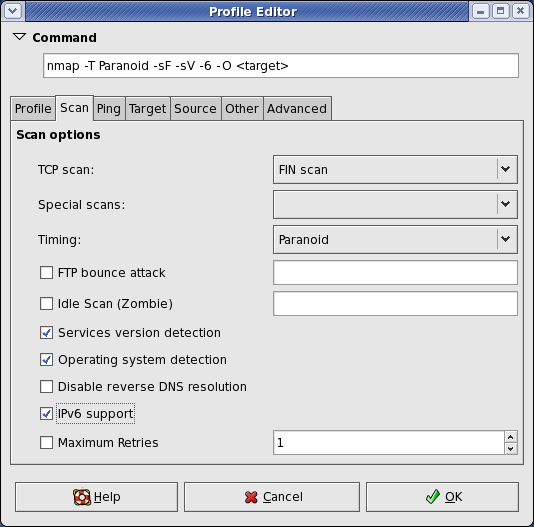
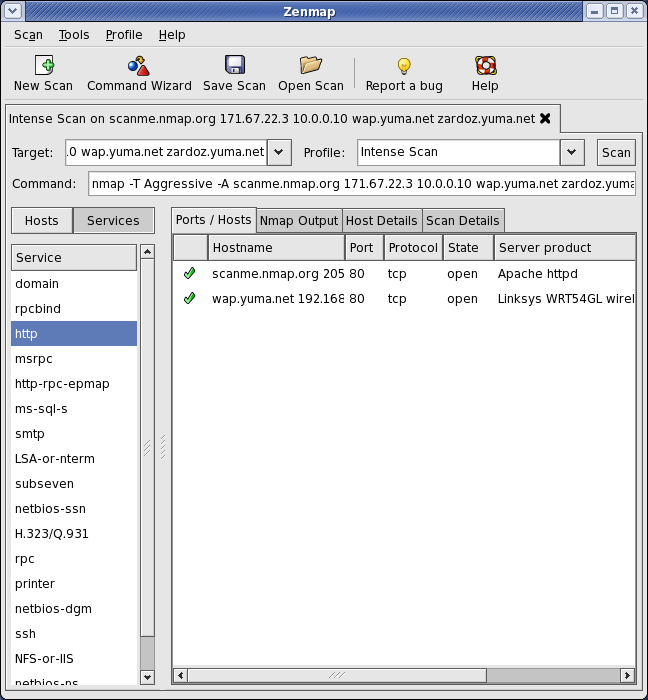
Zenmap is the official Nmap Security Scanner GUI. It is a multi-platform (Linux, Windows, Mac OS X, BSD, etc.) free and open source application which aims to make Nmap easy for beginners to use while providing advanced features for experienced Nmap users. Frequently used scans can be saved as profiles to make them easy to run repeatedly. A command creator allows interactive creation of Nmap command lines. Scan results can be saved and viewed later. Saved scan results can be compared with one another to see how they differ. The results of recent scans are stored in a searchable database.
You can download Zenmap (often packaged with Nmap itself) from the Nmap download page. Zenmap is quite intuitive, but you can learn more about using it from the Zenmap User's Guide or check out the Zenmap man page for some quick reference information.
Here are some Zenmap action shots (click for full res):
2010/11/16
Inventory - SYDI - Commands
#SYDI WORD (Need MS Word on the machine)
cscript sydi-server.vbs –t<NOM_DU_SERVER>
#SYDI XML
cscript sydi-server.vbs –t<NOM_DU_SERVER> -o<NOM_DU_SERVER>.xml -ex
#XML TO DOC (Need MS Word on the machine)
cscript.exe ss-xml2word.vbs -x<NOM_DU_SERVER>.xml -llang_english.xml
#XLS – OVERVIEW (with XML Files)
cscript.exe sydi-overview.vbs -x<PATH>
#XML TO HTML (Need MS Excel on the machine)
cscript.exe sydi-transform.vbs -x<SERVERNAME>.xml -sServerhtml.xsl -o<SERVERNAME>.html
cscript sydi-server.vbs –t<NOM_DU_SERVER>
#SYDI XML
cscript sydi-server.vbs –t<NOM_DU_SERVER> -o<NOM_DU_SERVER>.xml -ex
#XML TO DOC (Need MS Word on the machine)
cscript.exe ss-xml2word.vbs -x<NOM_DU_SERVER>.xml -llang_english.xml
#XLS – OVERVIEW (with XML Files)
cscript.exe sydi-overview.vbs -x<PATH>
#XML TO HTML (Need MS Excel on the machine)
cscript.exe sydi-transform.vbs -x<SERVERNAME>.xml -sServerhtml.xsl -o<SERVERNAME>.html
2010/09/27
Active Directory - Saved Queries (ADUC MMC)
Updated: 2013/03/29
Intro
All queries located in the Saved Queries folder are stored in Active Directory Users and Computers (dsa.msc). Once you have successfully created your customized set of queries you can copy the .msc file to other domain controllers (located in the same domain) and use the same set of saved queries. You can also export saved queries to an .xml file and import them into other Active Directory User and Computer consoles located on domain controllers (within the same domain)
LDAP Syntax
Saved Queries
Windows XP Computers with Service Pack 2 Installed
(&(objectCategory=computer)(operatingSystem=Windows XP Professional)(operatingSystemServicePack=Service Pack 2))
Windows XP Computers with Service Pack 1 Installed
(&(operatingSystem=Windows XP*l)(operatingSystemServicePack=Service Pack 1)))
Windows XP Computers with No Service Pack Installed
Notice the “!” before operating SystemServicePack and the “*”. The “!” means NOT so the statement reads “NOT equal to anything” instead of NULL or empty quotes (”") like some other languages.
(&(operatingSystem=Windows XP Professional)(!operatingSystemServicePack=*)))
Windows Server 2003 No Service Pack 1
(&(objectCategory=computer)(operatingSystem=Windows Server 2003)(!operatingSystemServicePack=*))
Windows Server 2003 Service Pack 1 Installed
(&(objectCategory=computer)(operatingSystem=Windows Server 2003)(operatingSystemServicePack=Service Pack 1))
Windows 2000 Professional
(&(objectCategory=computer)(operatingSystem=Windows 2000 Professional))
Windows 2000 Server
(&(objectCategory=computer)(operatingSystem=Windows 2000 Server))
All Windows Server 2003 Servers
(&(objectCategory=computer)(operatingSystem=Windows Server 2003))
SQL Servers (running on Windows 2003) (please verify in your environment)
(&(objectCategory=computer)(servicePrincipalName=MSSQLSvc*)(operatingSystem=Windows Server 2003))
SQL Servers any Windows Server OS
(&(objectCategory=computer)(servicePrincipalName=MSSQLSvc*)(operatingSystem=Windows Server*))
Exchange Servers (running on Windows 2003) (please verify in your environment)
(&(objectCategory=computer)(servicePrincipalName=exchangeMDB*)(operatingSystem=Windows Server 2003))
Exchange Servers any Windows Server OS
(&(objectCategory=computer)(servicePrincipalName=exchangeMDB*)(operatingSystem=Windows Server*))
Windows Vista SP1
(&(objectCategory=computer)(operatingSystem=Windows Vista*)(operatingSystemServicePack=Service Pack 1))
Windows Server 2008 Enterprise
(&(objectCategory=computer)(operatingSystem=Windows Server® 2008 Enterprise)(operatingSystemServicePack=Service Pack 1))
Windows Server 2008 (all versions)
(&(objectCategory=computer)(operatingSystem=Windows Server® 2008*))
Notice the ® in the Windows 2008 values, it needs to be in the query or there won’t be any results.
Groups Like Service (finds any group name that contains the word service)
(objectcategory=group)(samaccountname=*service*)
Description Like Service (finds accounts in which the description contains the word service)
(objectcategory=person)(description=*service*)
Groups Like Admin (finds any groups whose name contains the word admin)
(objectcategory=group)(samaccountname=*admin*)
Universal Groups (finds groups with universal scope)
(groupType:1.2.840.113556.1.4.803:=8)
Groups with No Members (finds groups that have no members in them)
(objectCategory=group)(!member=*)
Note: The ! symbol means "Not" and * means "Has a value," so the combination of the two evaluates to “Doesn’t have a value.”
Global, Domain Local, or Universal Groups (finds any group defined as a Global Group, a
Domain Local Group, or a Universal Group)
(groupType:1.2.840.113556.1.4.804:=14)
Global, Domain Local, or Universal Groups with No Members (finds any group defined as a
Global Group, a Domain Local Group, or a Universal Group that has no members)
(groupType:1.2.840.113556.1.4.804:=14)(!member=*)
User Like Service (finds any account ID that has a name containing the word service)
(objectcategory=person)(samaccountname=*service*)
Password Does Not Expire (finds user accounts with nonexpiring passwords)
(objectCategory=person)(objectClass=user)(userAccountControl:1.2.840.113556.1.4.803:=65536)
No Employee ID (finds any user account that has no employeeid value)
(objectcategory=person)(!employeeid=*)
No Login Script (finds accounts that don't run a logon script)
(objectcategory=person)(!scriptPath=*)
No Profile Path (finds accounts that don’t have roaming profiles)
(objectcategory=person)(!profilepath=*)
Must Change Password and Not Disabled (finds nondisabled accounts that must change their password at next logon)
(objectCategory=person)(objectClass=user)(pwdLastSet=0)(!useraccountcontrol:1.2.840.113556.1.4.803:=2)
UserList Exclude Disabled Account (finds all user accounts except those that are disabled)
(objectCategory=person)(objectClass=user)(!useraccountcontrol:1.2.840.113556.1.4.803:=2)
Locked Out Accounts (finds all locked out accounts)
(objectCategory=person)(objectClass=user)(useraccountcontrol:1.2.840.113556.1.4.803:=16)
Domain Local Groups (finds groups with Domain Local scope)
(groupType:1.2.840.113556.1.4.803:=4)
Users with Email Address (finds accounts that have an email address)
(objectcategory=person)(mail=*)
Users with No Email Address (finds accounts with no email address)
(objectcategory=person)(!mail=*)
Find Groups that contains the word admin
(objectcategory=group)(samaccountname=*admin*)
Find users who have admin in description field
(objectcategory=person)(description=*admin*)
Find all Universal Groups
(groupType:1.2.840.113556.1.4.803:=8)
Empty Groups with No Members
(objectCategory=group)(!member=*)
Finds all groups defined as a Global Group, a Domain Local Group, or a Universal Group
(groupType:1.2.840.113556.1.4.804:=14)
Find all User with the name Bob
(objectcategory=person)(samaccountname=*Bob*)
Find user accounts with passwords set to never expire
(objectCategory=person)(objectClass=user)(userAccountControl:1.2.840.113556.1.4.803:=65536)
Find all users that never log in to domain
(&(&(objectCategory=person)(objectClass=user))(|(lastLogon=0)(!(lastLogon=*))))
Find user accounts with no log on script
(objectcategory=person)(!scriptPath=*)
Find user accounts with no profile path
(objectcategory=person)(!profilepath=*)
Finds non disabled accounts that must change their password at next logon
(objectCategory=person)(objectClass=user)(pwdLastSet=0)(!useraccountcontrol:1.2.840.113556.1.4.803:=2)
Finds all disabled accounts in active directory
(objectCategory=person)(objectClass=user)(useraccountcontrol:1.2.840.113556.1.4.803:=2)
Finds all locked out accounts
(objectCategory=person)(objectClass=user)(useraccountcontrol:1.2.840.113556.1.4.803:=16)
Finds Domain Local Groups
(groupType:1.2.840.113556.1.4.803:=4)
Finds all Users with Email Address set
(objectcategory=person)(mail=*)
Finds all Users with no Email Address
(objectcategory=person)(!mail=*)
Find all Users, Groups or Contacts where Company or Description is Contractors
(|(objectcategory=user)(objectcategory=group)(objectcategory=contact))(|(description=North*)(company=Contractors*))
Find all Users with Mobile numbers 712 or 155
(objectcategory=user)(|(mobile=712*)(mobile=155*))
Find all Users with Dial-In permissions
(objectCategory=user)(msNPAllowDialin=TRUE)
Find All printers with Color printing capability
Note: server name must be changed
(&(&(&(uncName=*Servername*)(objectCategory=printQueue)(printColor=TRUE))))
Find Users Mailboxes Overriding Exchange Size Limit Policies
(&(&(&objectCategory=user)(mDBUseDefaults=FALSE)))
Find all Users that need to change password on next login.
(&(objectCategory=user)(pwdLastSet=0))
Find all Users that are almost Locked-Out
Notice the “>=” that means “Greater than or equal to”.
(objectCategory=user)(badPwdCount>=2)
Find all Computers that do not have a Description
(objectCategory=computer)(!description=*)
Find all users with Hidden Mailboxes
(&(objectCategory=person)(objectClass=user)(msExchHideFromAddressLists=TRUE))
Find all Windows 2000 SP4 computers
(&(&(&(objectCategory=Computer)(operatingSystem=Windows 2000 Professional)(operatingSystemServicePack=Service Pack 4))))
Find all Windows XP SP2 computers
(&(&(&(&(&(&(&(objectCategory=Computer)(operatingSystem=Windows XP Professional)(operatingSystemServicePack=Service Pack 2))))))))
Find all Windows XP SP3 computers
(&(&(&(&(&(&(&(objectCategory=Computer)(operatingSystem=Windows XP Professional)(operatingSystemServicePack=Service Pack 3))))))))
Find all Vista SP1 computers
(&(&(&(&(sAMAccountType=805306369)(objectCategory=computer)(operatingSystem=Windows Vista*)(operatingSystemServicePack=Service Pack 1)))))
Find All Workstations
(sAMAccountType=805306369)
Find all 2003 Servers Non-DCs
(&(&(&(samAccountType=805306369)(!(primaryGroupId=516)))(objectCategory=computer)(operatingSystem=Windows Server 2003*)))
Find all 2003 Servers – DCs
(&(&(&(samAccountType=805306369)(primaryGroupID=516)(objectCategory=computer)(operatingSystem=Windows Server 2003*))))
Find all Server 2008
(&(&(&(&(samAccountType=805306369)(!(primaryGroupId=516)))(objectCategory=computer)(operatingSystem=Windows Server 2008*))))
Find all user accounts that have the name “srv_acct” in them, if your service accounts follow a naming convention.
(objectcategory=person)(samaccountname=*srv_acct*)
Find all groups that have no members
(objectCategory=group)(!member=*)
Find users that have non-expiring passwords.
(objectCategory=person)(objectClass=user)(userAccountControl:1.2.840.113556.1.4.803:=65536)
Find users created between 2010-01-01 and 2011-01-01
(&(&(objectCategory=user)(whenCreated>=20100101000000.0Z&<=20110101000000.0Z&)))
Subscribe to:
Posts (Atom)